
The TranslatePress Language widget lets users change your WordPress mobile app’s display language using your existing TranslatePress configuration. It reads the languages you have set up in TranslatePress and renders a switcher with flags, native language labels, or both — choose the layout that fits your app’s design.
This widget requires both the TranslatePress plugin and the Appress TranslatePress integration to be active. Once enabled, the language a user selects in-app syncs with their TranslatePress preference, so the choice persists across sessions and across both the web and app surfaces of your site. For a full walkthrough of how the integration works, see the TranslatePress integration guide.
Option A — Shortcode
Use the [appress_translatepress_switcher] shortcode anywhere shortcodes are supported.
Available options:
style—dropdown(default) orinlineshow_flag—1(default) or0. Renders TranslatePress’s bundled flag PNG.show_label—1(default) or0. Renders the language name.label— Optional prefix label rendered before the picker (e.g."Language:").
[appress_translatepress_switcher style="dropdown" show_flag="1" show_label="1" label="Language:"]
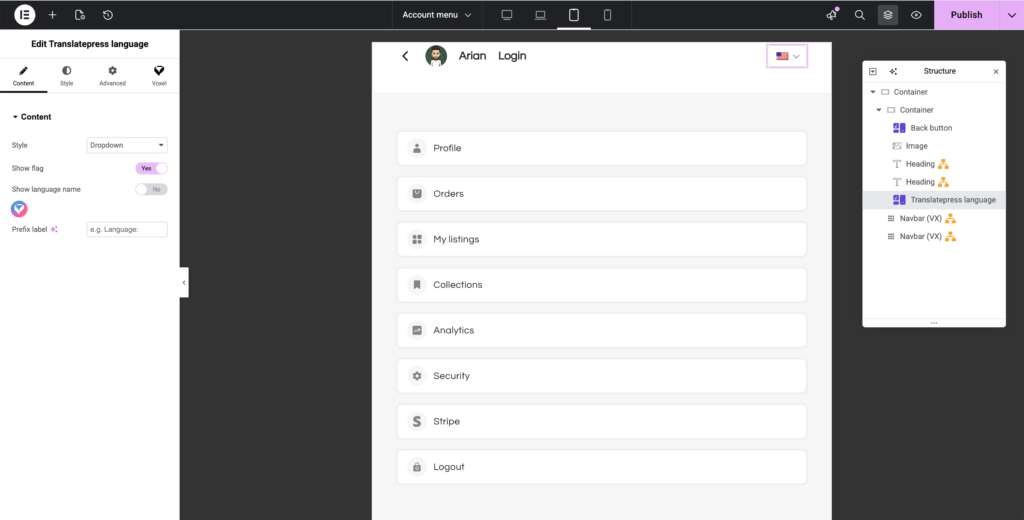
Option B — Elementor widget
In the Elementor editor, search for the Appress TranslatePress Language widget and drag it into your layout.
Option C — Bricks Builder widget
In the Bricks Builder editor, search for the Appress TranslatePress Language element and drop it into your layout.