
Register and create an app on Appress
To use Appress, you need to create an app on Appress. This app is used to manage your app’s subscription plans.
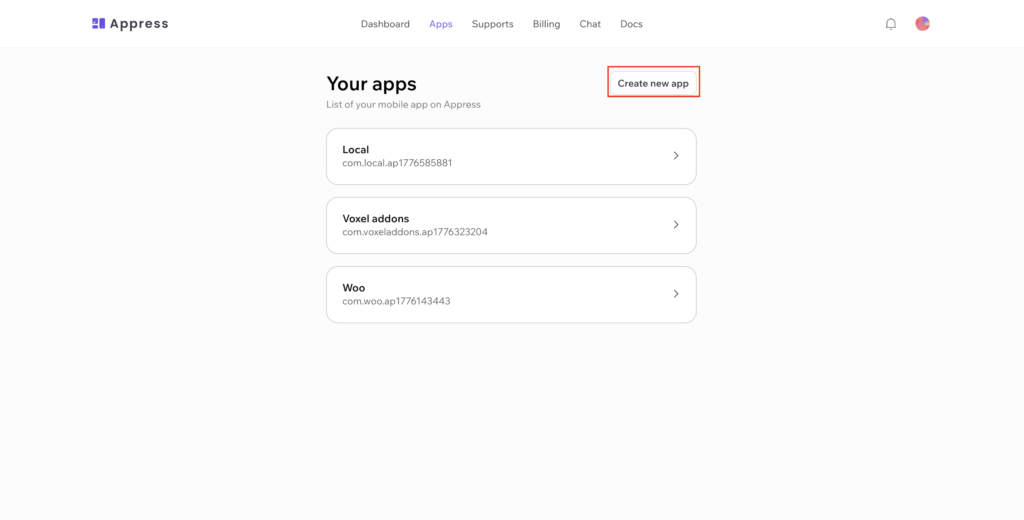
Visit your apps to create a new app
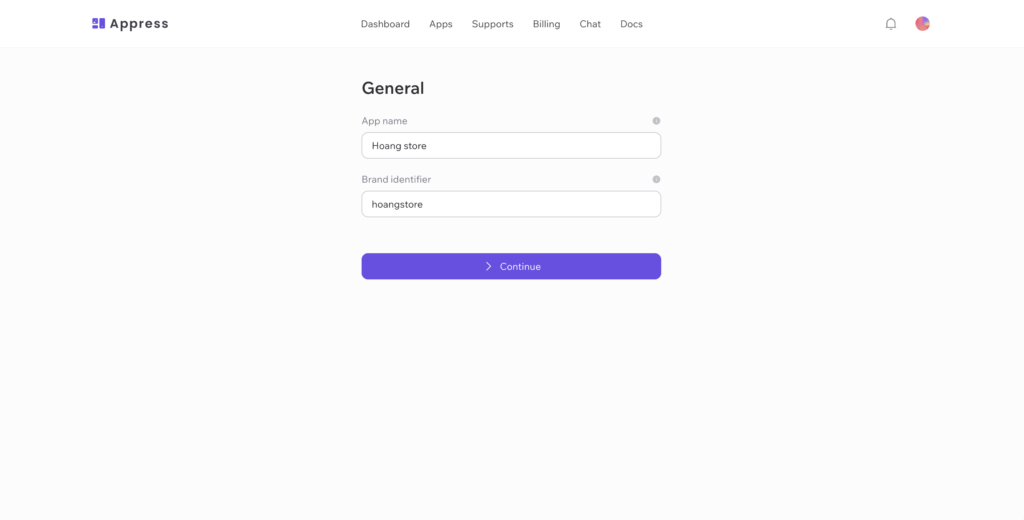
Enter you app information
- App name: The app name is the name assigned to your app in the management dashboard. It is not the display name of the final application — it is only visible to you
- Brand identifier: The brand identifier is used to generate your app’s package ID and cannot be changed
- Package ID: This is the fixed identifier for your mobile app, used when registering it with Firebase, the Play Store, and the App Store. It is automatically generated for each Appress app and cannot be modified.
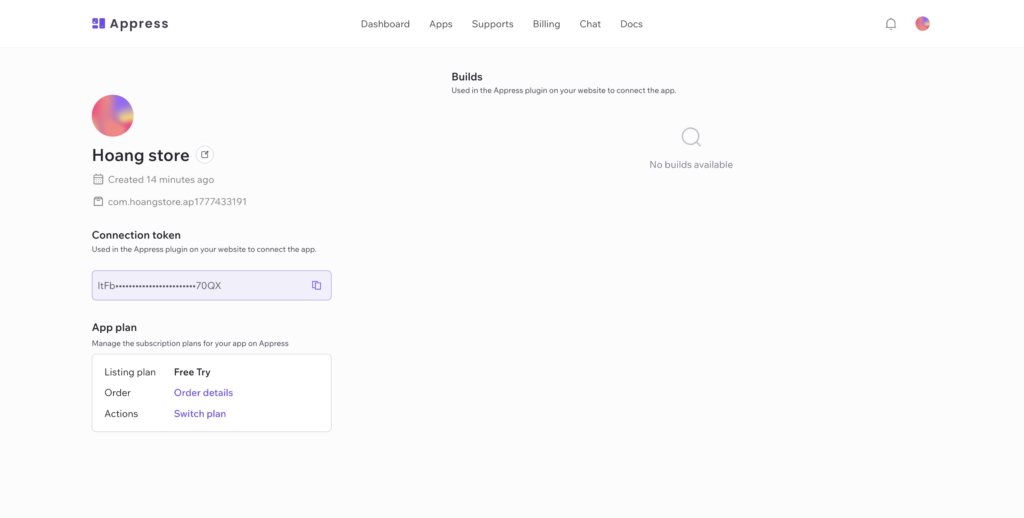
Connect your website to Appress using Appress plugin
Install & activate Appress plugin on your website (php 8.3 is required)
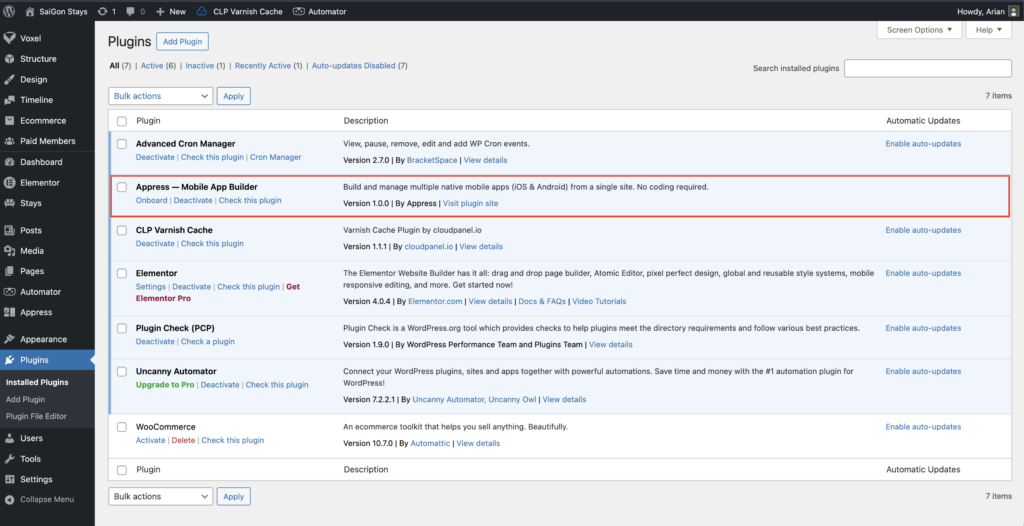
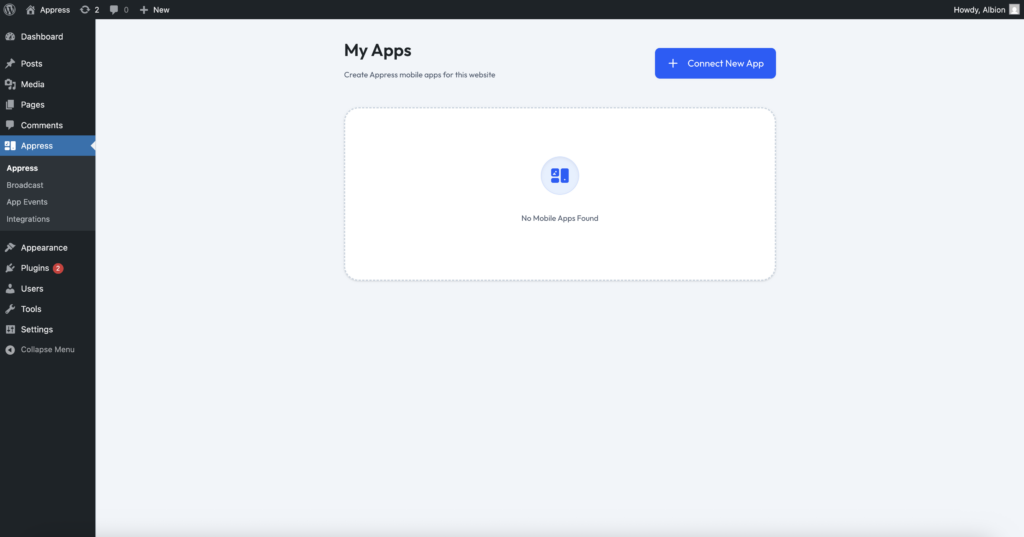
Go to wordpress admin page Appress > My Apps, add a new app, and enter the connection token of the app you’ve created on Appress
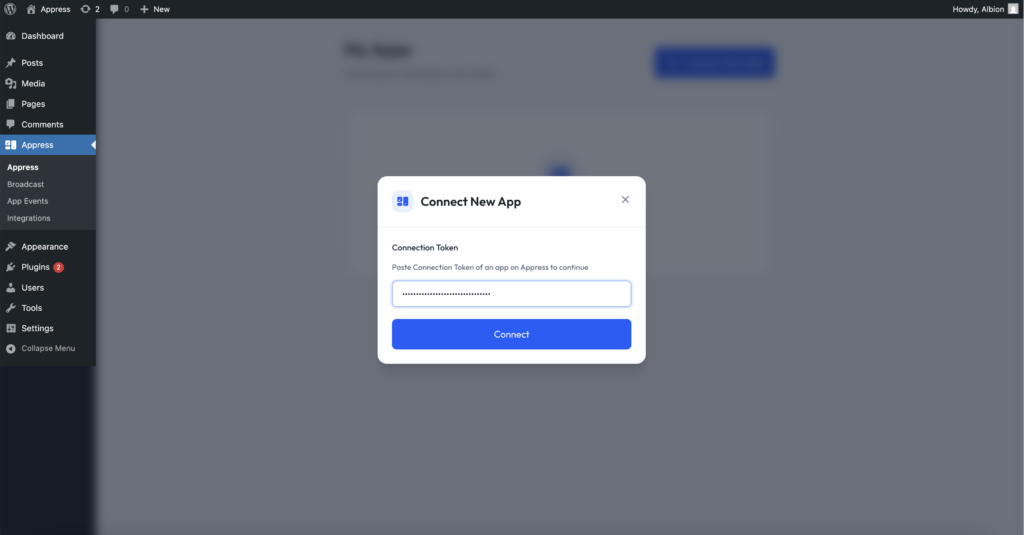
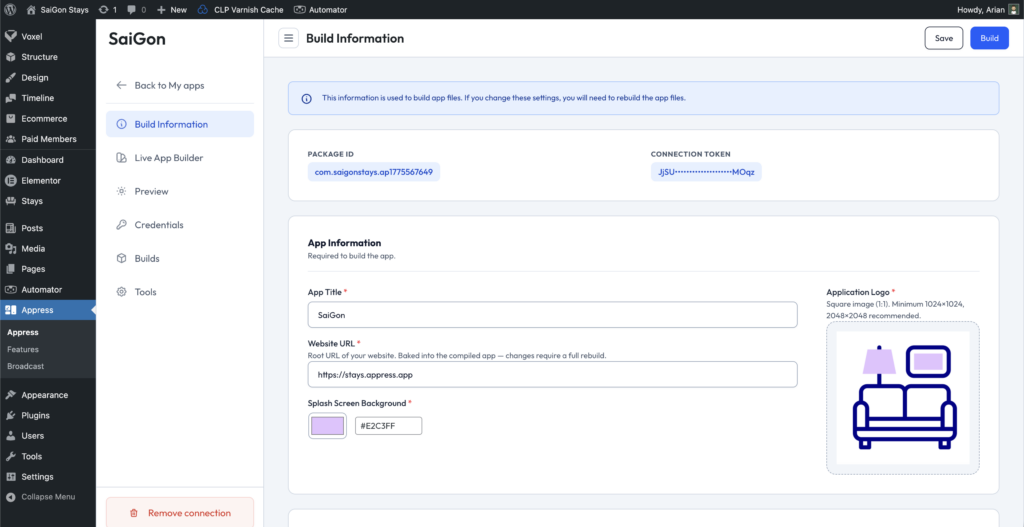
Once the connection token is validated, the system will take you to a screen where you can enter your app information and begin building the mobile app file.
Enter the basic information and logo for your app
Enter the App Title, Website URL, and Application Logo in the Build Information section.
Preview your app
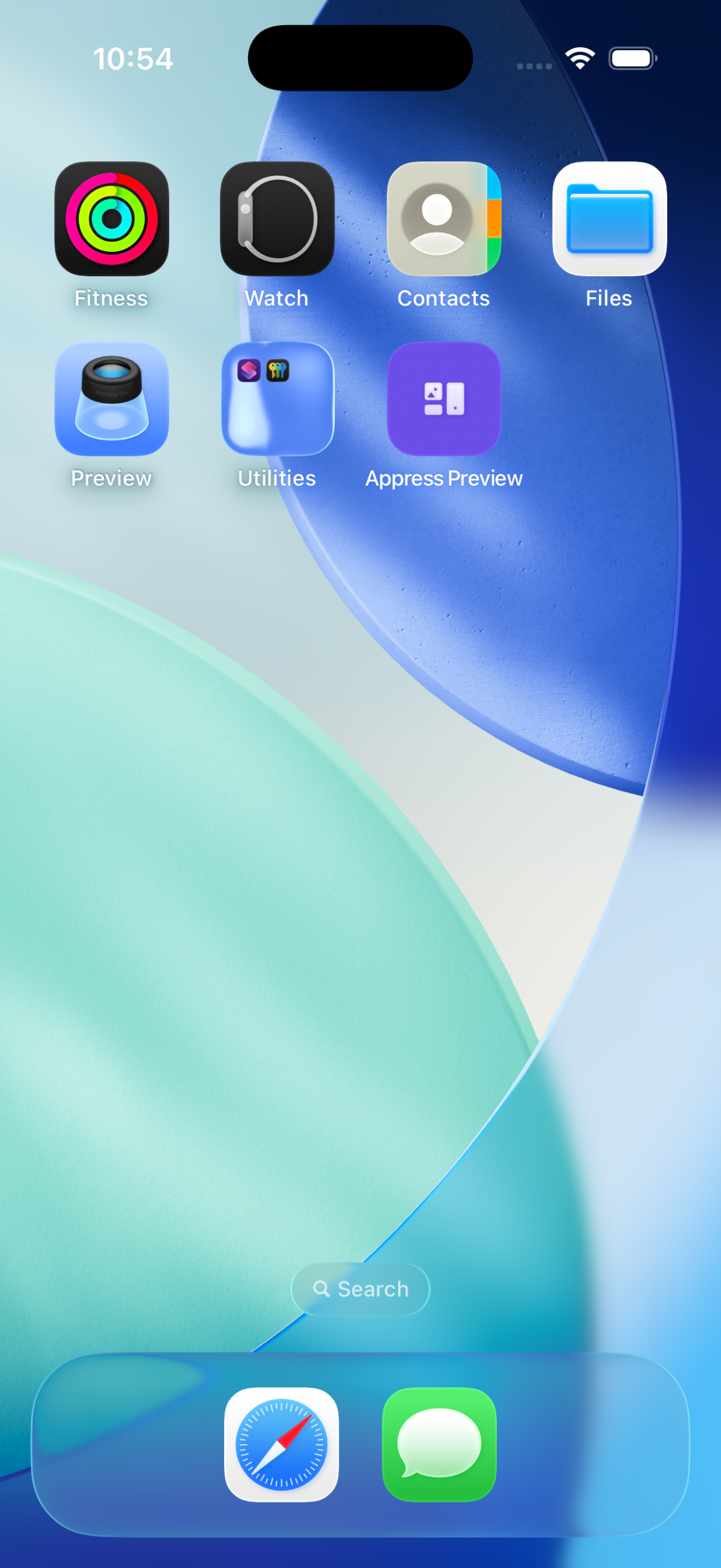
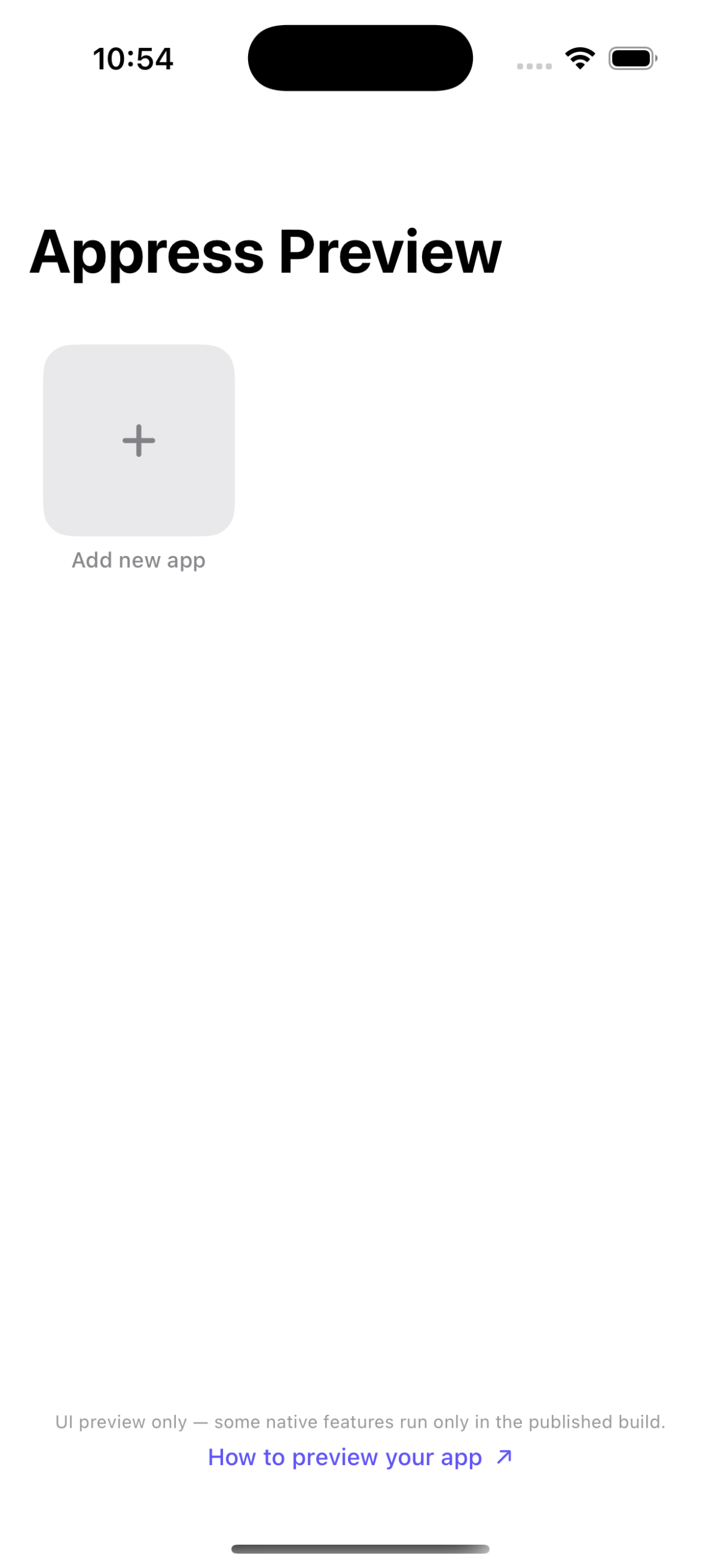
If this is your first time creating an app and you want to preview it, you can use Appress Preview app
Note: In the preview app, native features such as biometrics, Google login, and notifications will not work. The preview is only intended for testing how your app behaves and reviewing the UI design before building the actual app or deciding to subscribe to a paid plan.
If you don’t need to preview your app and want to build it right away, skip this section and go to manage an app.
Pair the Appress Preview app with your website
Generate QRcode by go to Appress > App > Preview
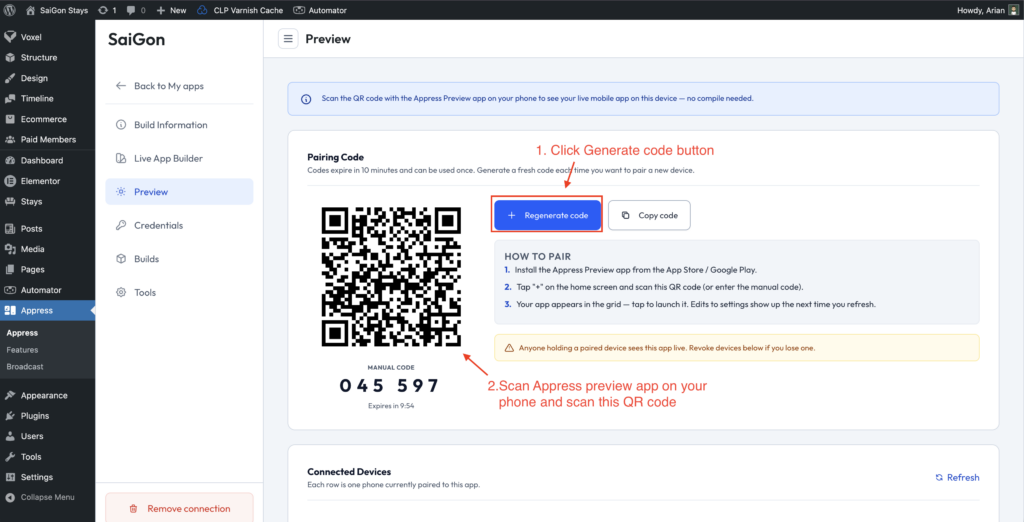
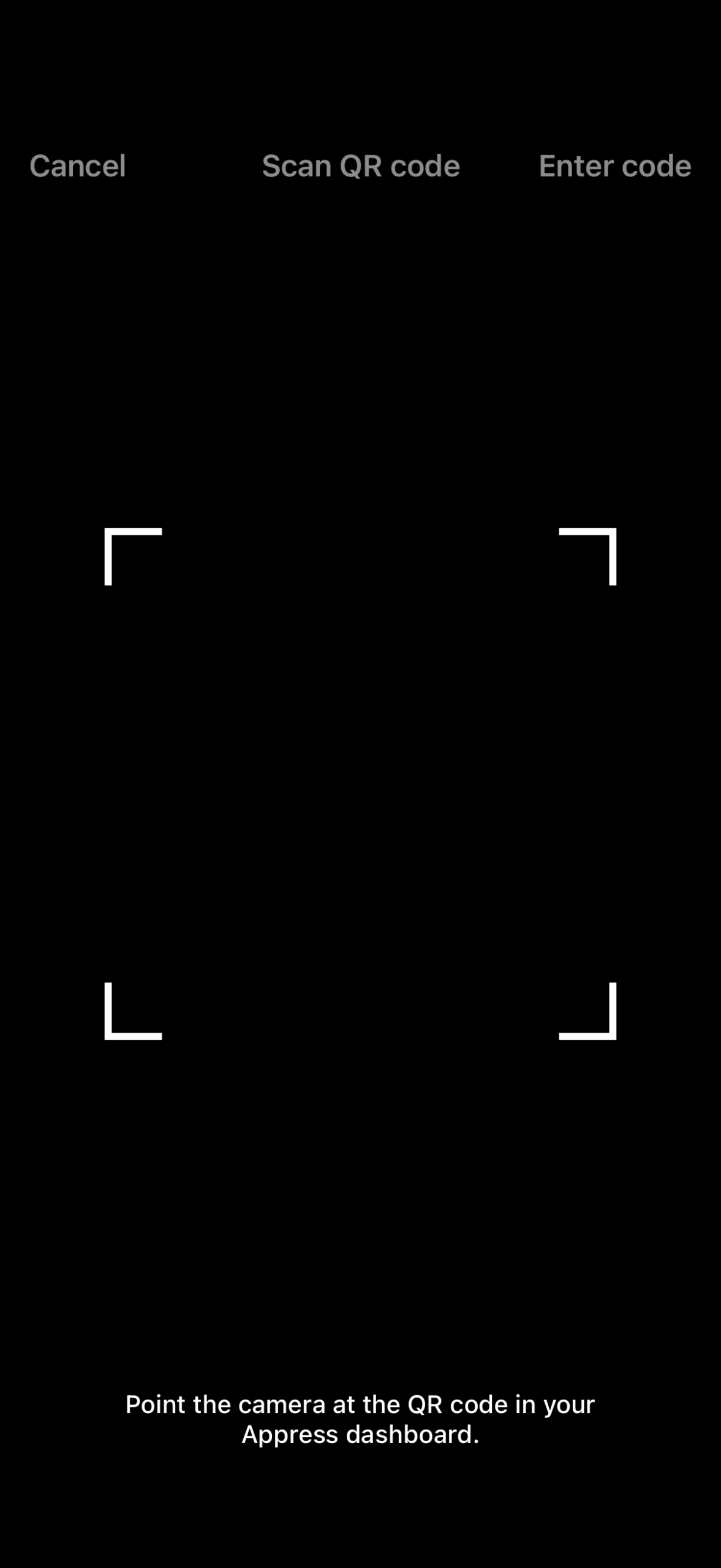
Scan the QR code using the Appress Preview app on your phone
Design your app’s UI
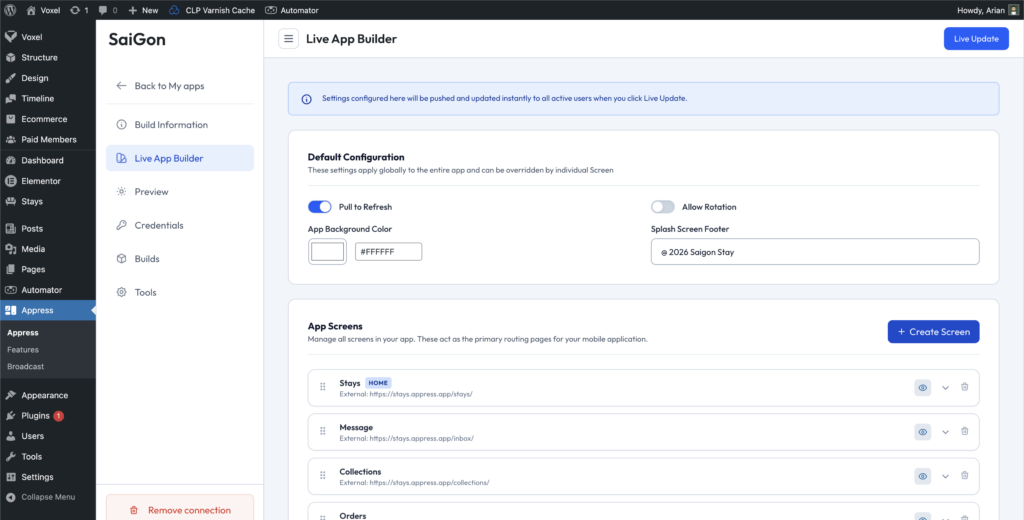
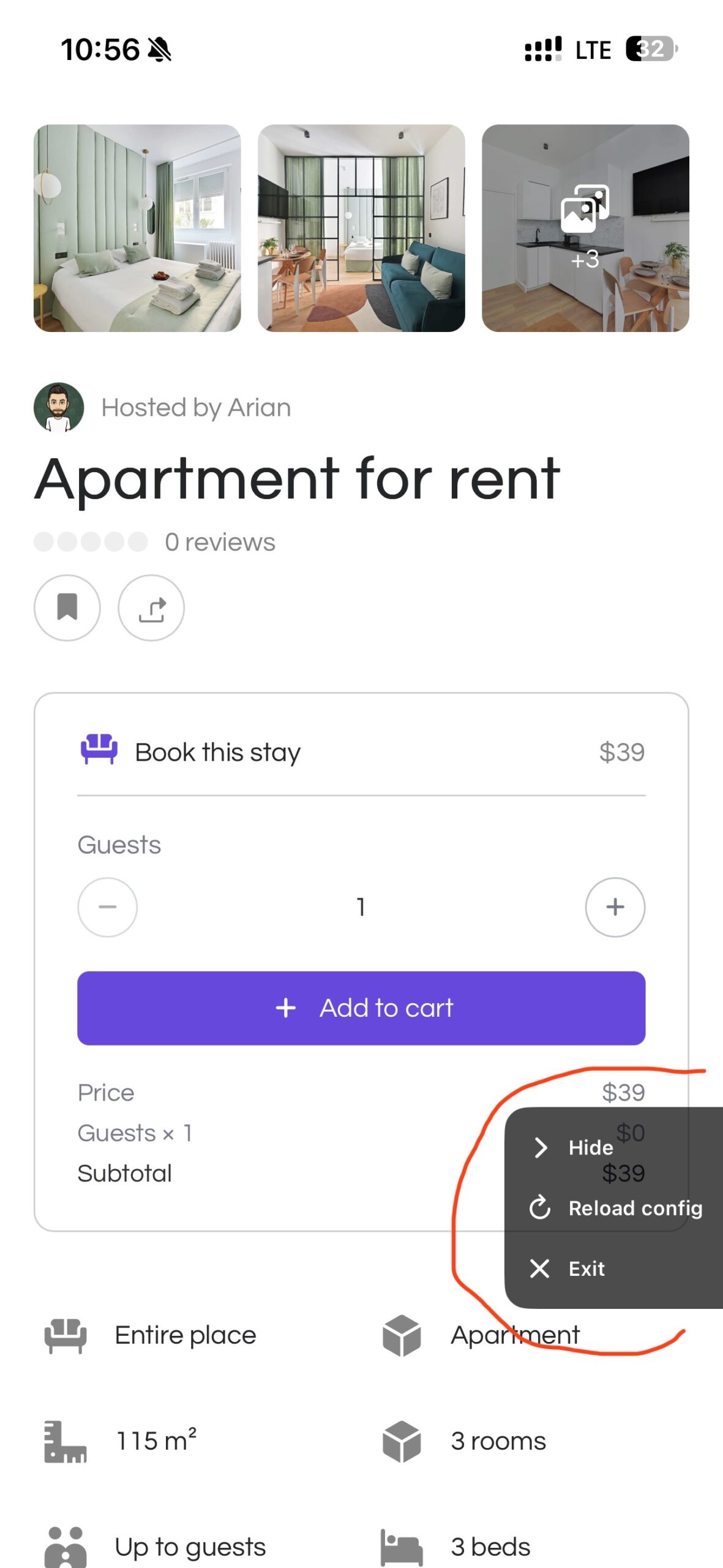
Then, design your app’s interface using the Live App Builder and preview it with Appress Preview.
Click Reload Config each time you make changes to your app design in Build Information and Live App Builder to see the latest app interface.