Appress lets you send push notifications to devices that have your app installed — from bulk marketing campaigns to single-user app events like order status updates and more.
The guide below covers how to set up the configuration and build the UI for the notification feature.
Configuration to enable push notifications
Firebase Push Notifications
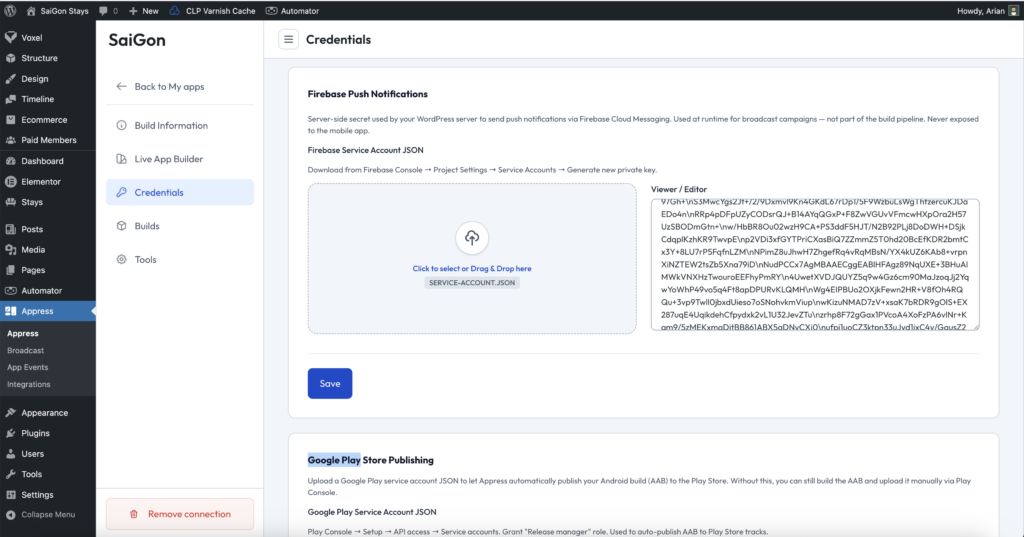
To use the push notification feature, besides adding the .plist and .json files in the build information, you’ll also need to upload your Firebase Service Account JSON to allow notifications to be sent.
Follow the instructions in the section to obtain the JSON file.
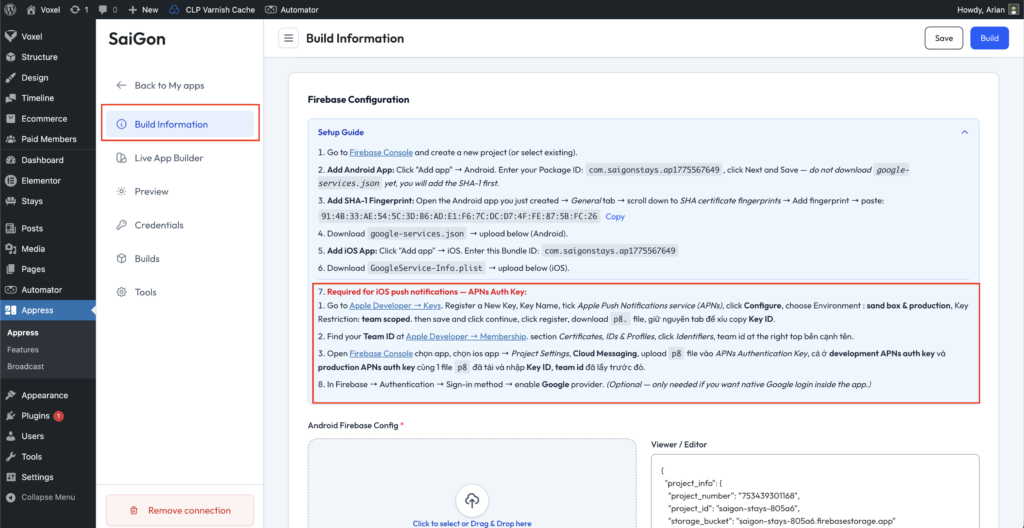
Set up APNs for iOS
To enable this feature on iOS, you’ll need an additional setup step — creating APNs for your app. This is already covered in the Firebase Configuration step under Build Information. If you’ve already completed it, feel free to skip to the next step.
Display notifications in the UI
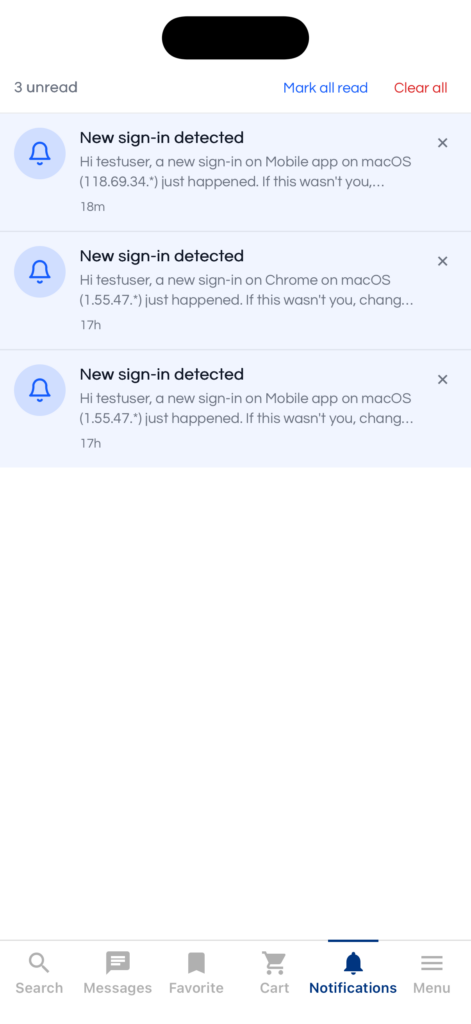
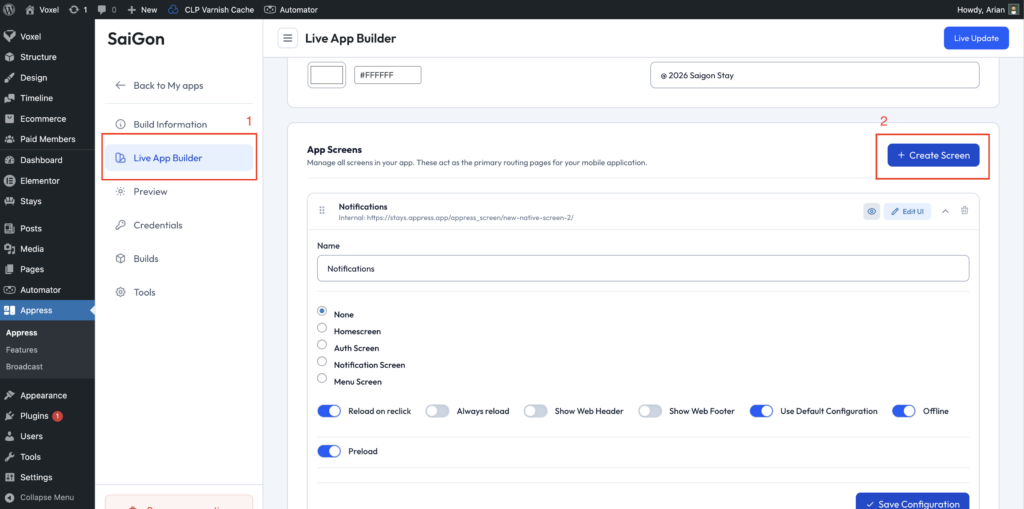
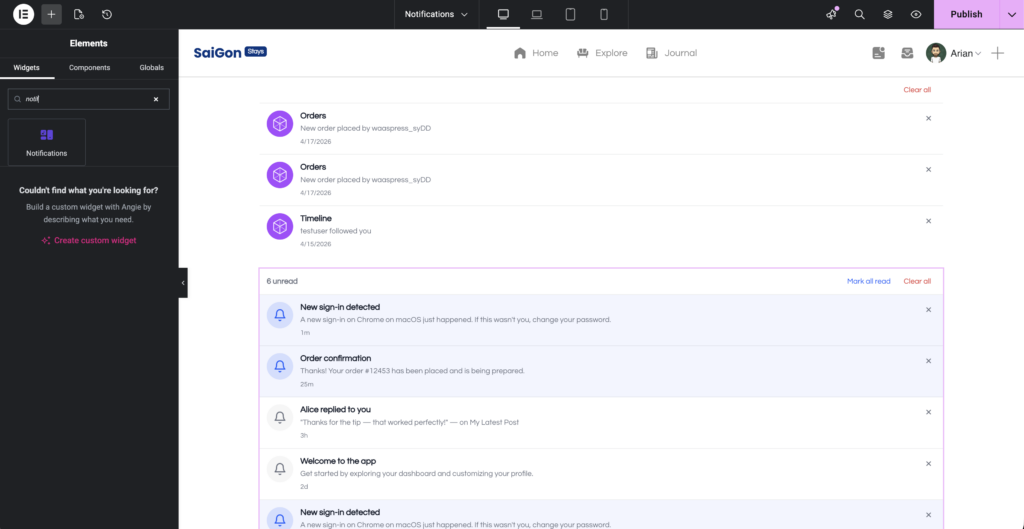
To display the notifications list in your app, create a screen in Appress and use one of the following methods:
- Use the
[appress_notifications]shortcode. - Drag and drop the Notifications widget if you’re using Elementor.
- Drag and drop the Notifications element if you’re using Bricks Builder.
Broadcast
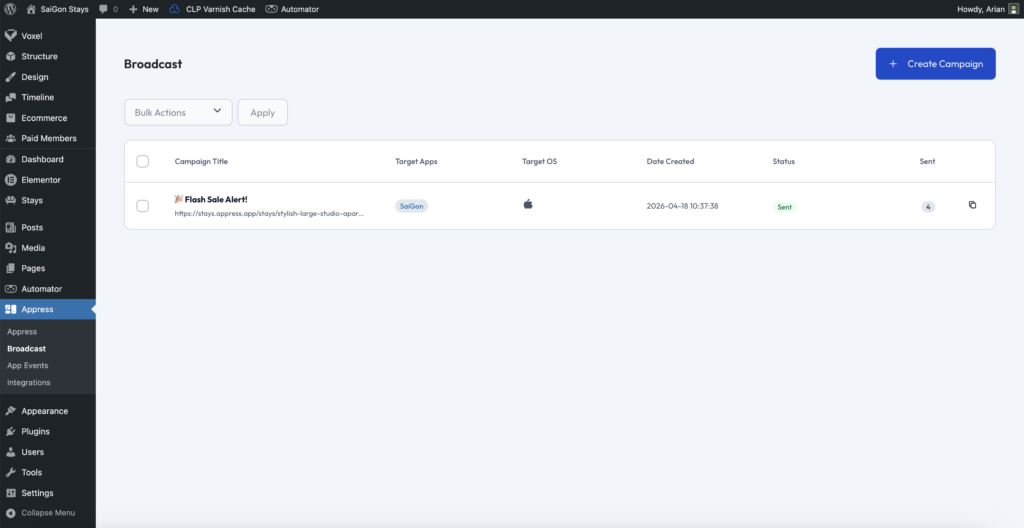
Broadcast is a feature that lets you send notifications to all users who have installed your app, whether they’re logged in or not. This feature is useful for marketing campaigns — such as promotions or new product launches.
Create new Campaign
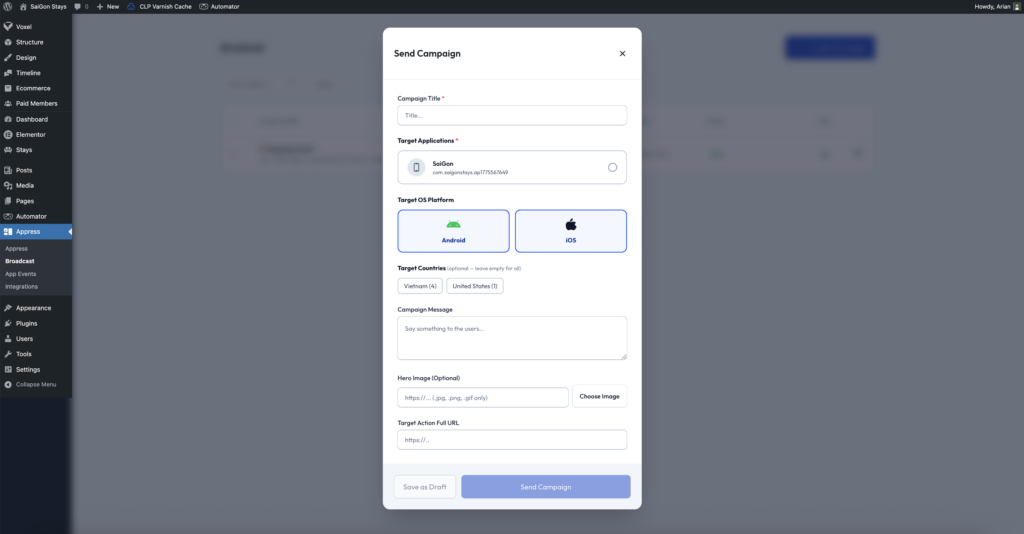
When creating a campaign, you can choose the audience you want to send notifications to: target apps, operating systems, and countries. Appress also supports targeting by FluentCRM tags and lists when the FluentCRM integration is enabled.
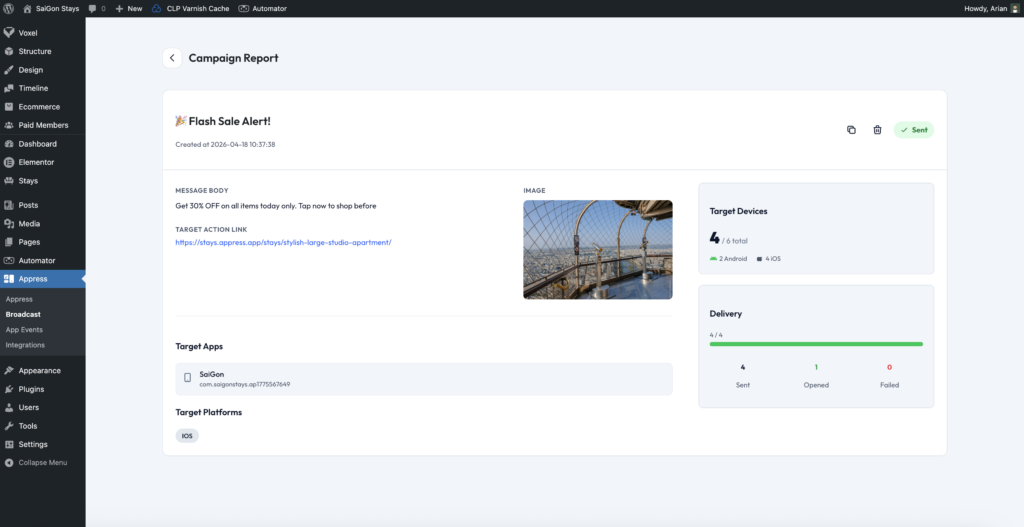
Campaign Report
Track campaign delivery status
App Events
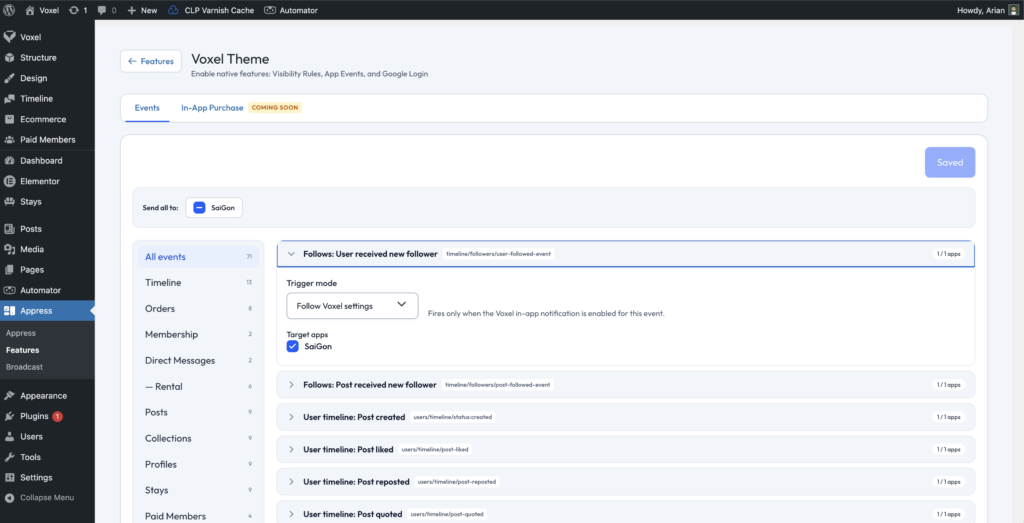
App Events is a feature that sends user-specific push notifications — for example, purchase events or notifications targeted to individual users. Appress supports core events like new device login, as well as events from WooCommerce and Voxel.
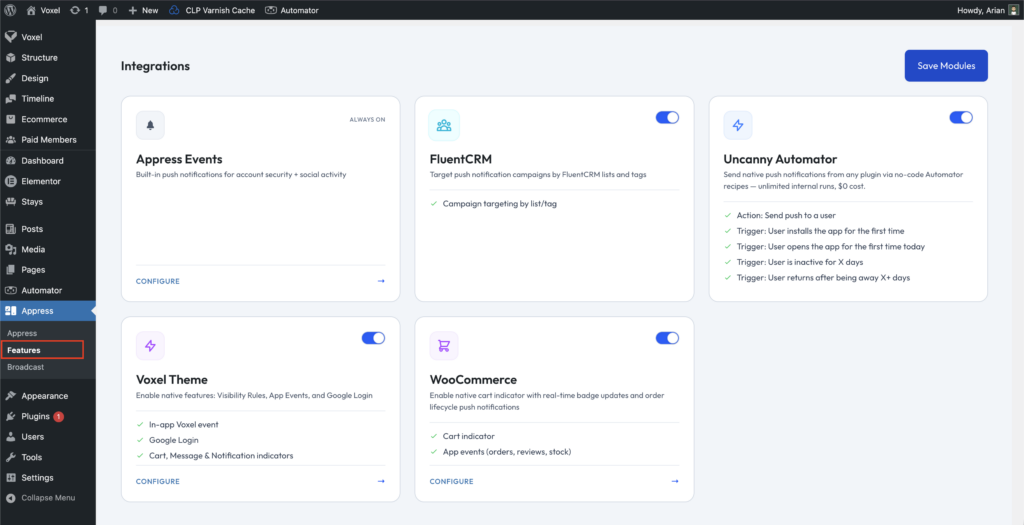
To enable or disable events, go to Appress → Features and open the Appress, Voxel, or WooCommerce integration to configure your settings.