Register and create an app on Appress
To use Appress, you need to create an app on Appress. This app is used to manage your app’s subscription plans.
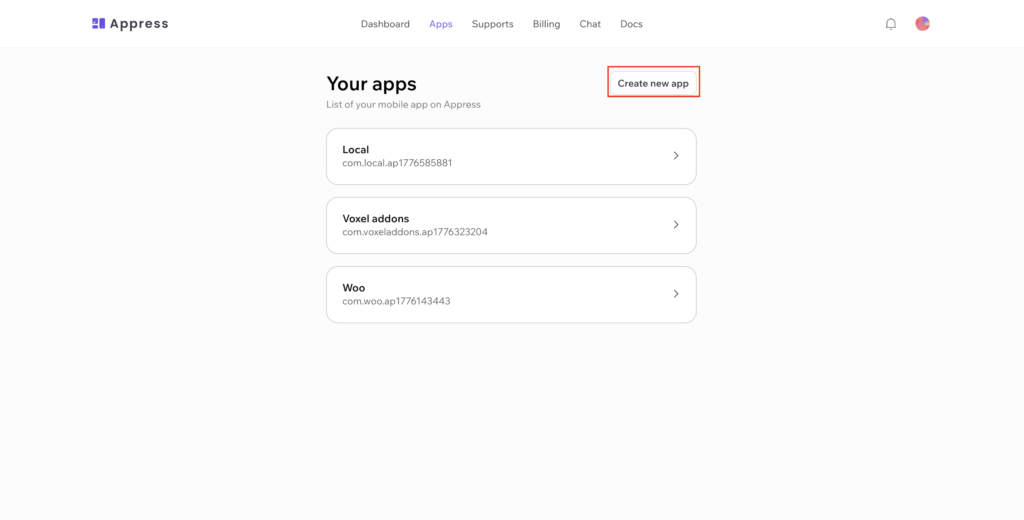
Visit your apps to create a new app
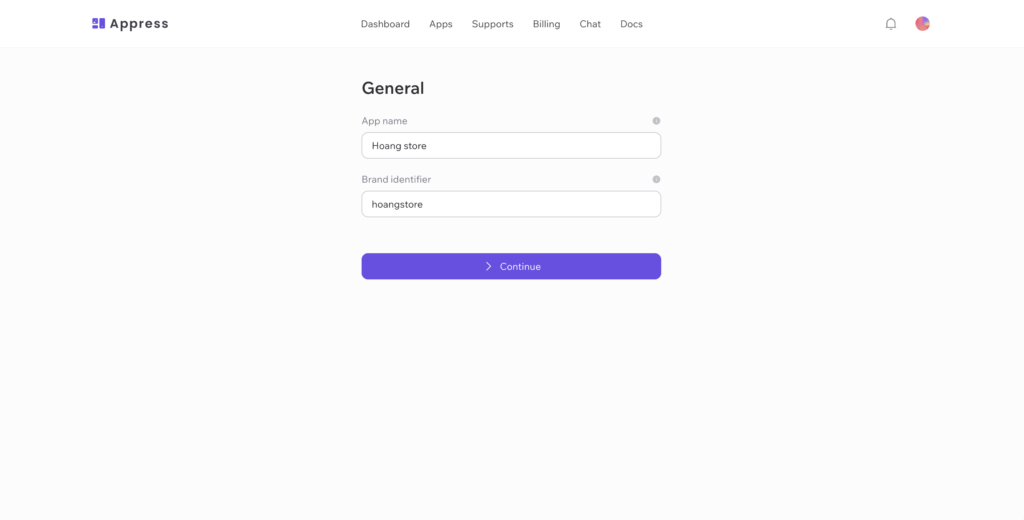
Enter you app information
- App name: The app name is the name assigned to your app in the management dashboard. It is not the display name of the final application — it is only visible to you
- Package ID: This is the fixed identifier for your mobile app, used when registering it with Firebase, the Play Store, and the App Store.
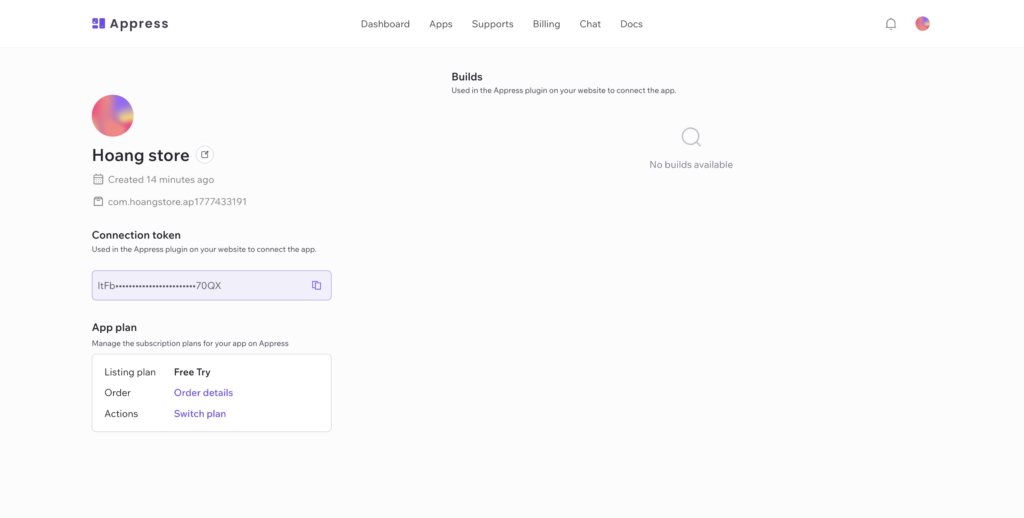
Connect your website to Appress using Appress plugin
Install & activate Appress plugin on your website (php 8.3 is required)
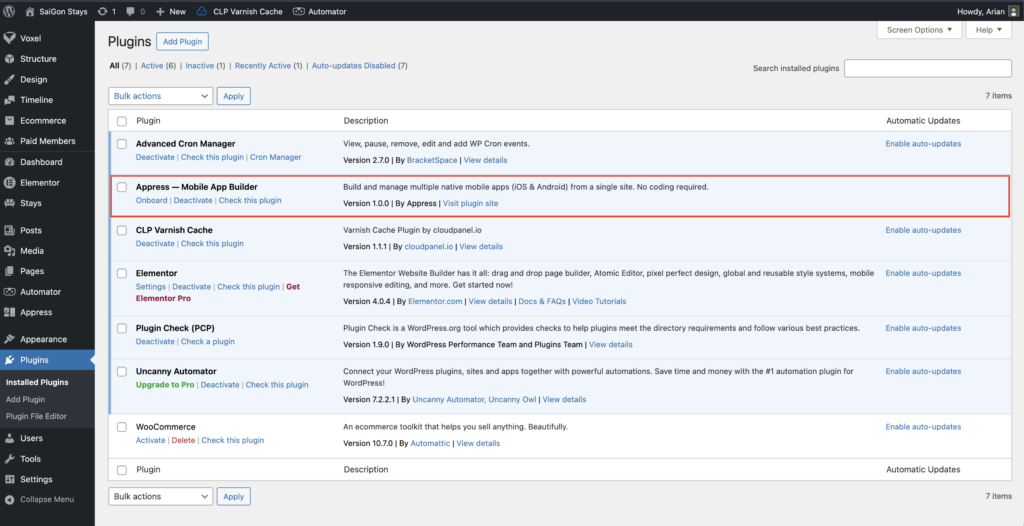
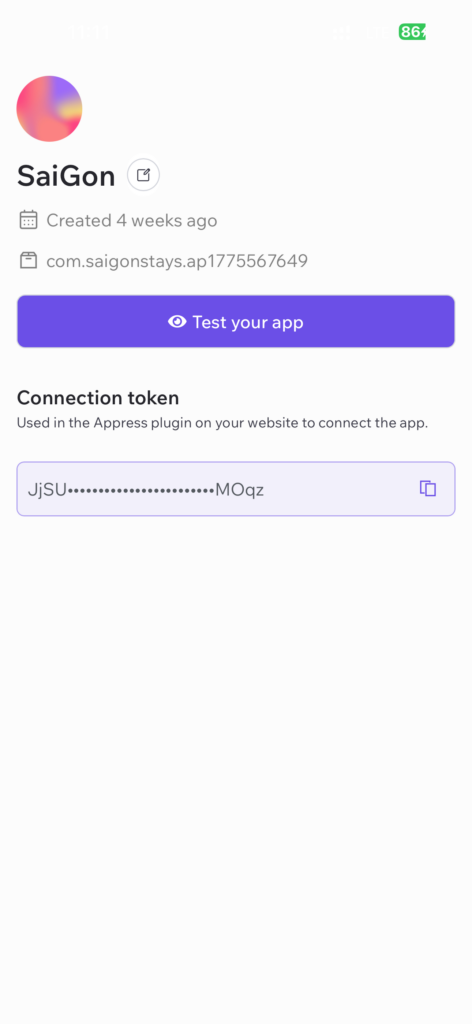
Go to wordpress admin page Appress > My Apps, add a new app, and enter the connection token of the app you’ve created on Appress
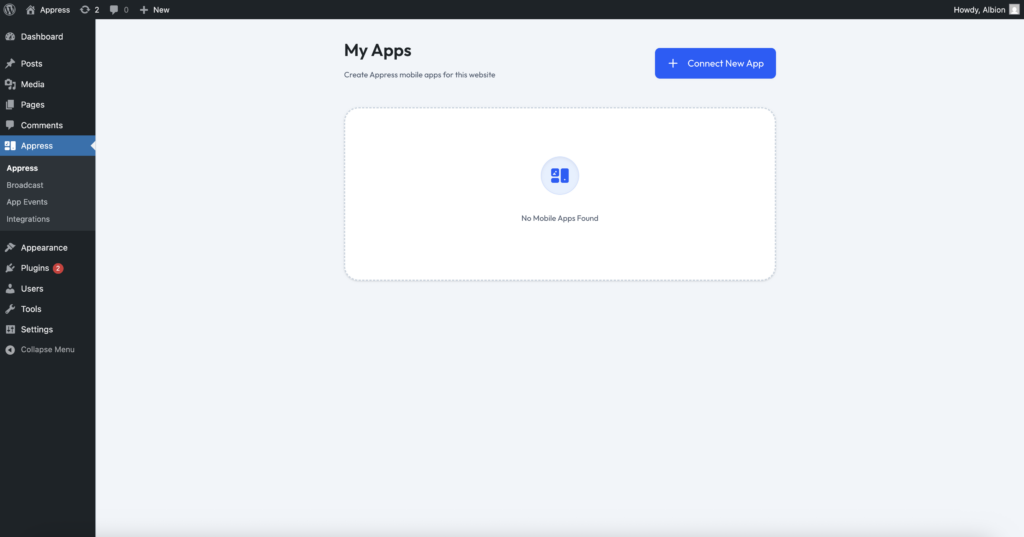
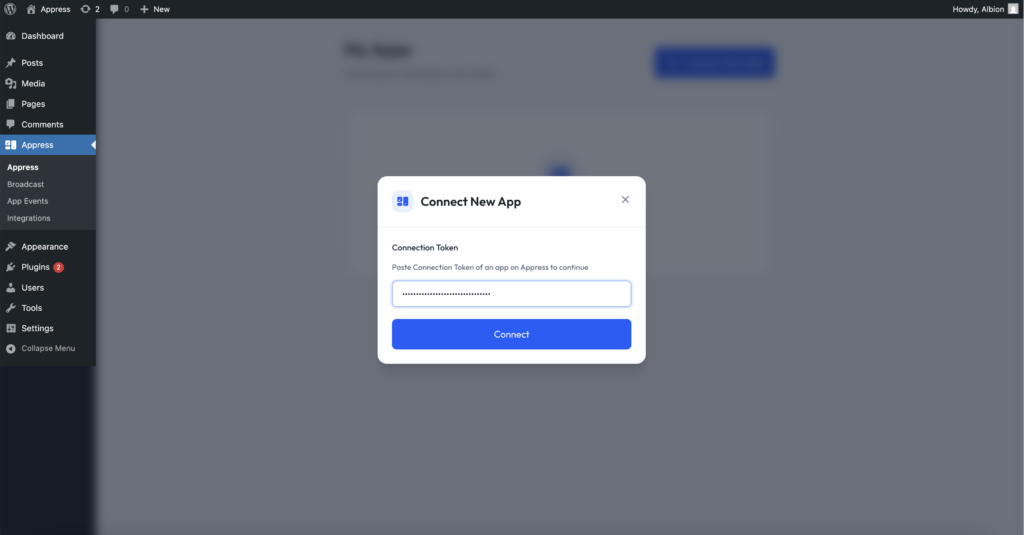
Once the connection token is validated, the system will take you to a screen where you can enter your app information and begin building the mobile app file.
Preview your app free
You can create a demo to experience your app directly on your phone by following these steps:
- Add some main screens and bottom navigation items to your app
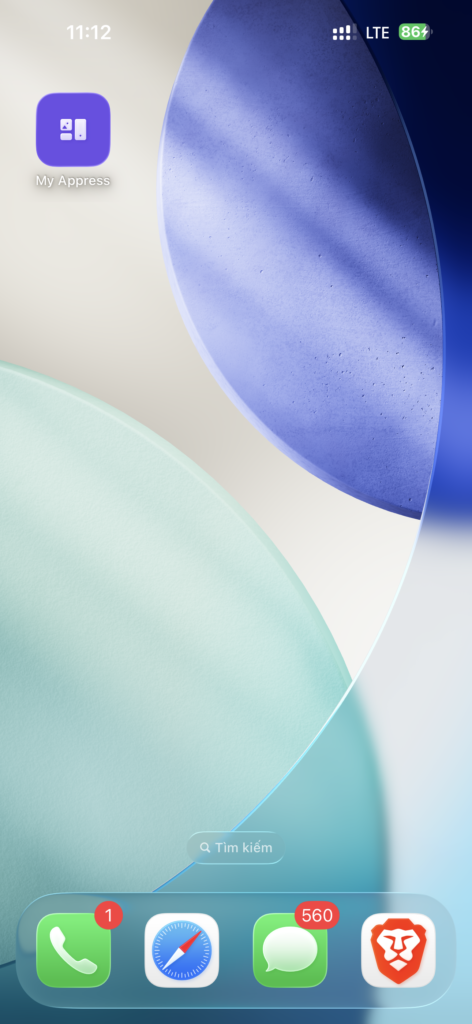
- Download the My Appress app to preview your app
Add Screens and Bottom Navigation
Read the instructions in the App Screens and Bottom Navigation sections at https://docs.appress.app/build-information/#App-Screens to add a few screens to your app’s UI.
Please note that your configuration may not yet be optimized for the app and should only serve as a reference for how the app experience works. You may encounter issues such as content overlapping the status bar, web components appearing in the app that you don’t want, or you may want to create a completely custom layout for your app. All of these can be optimized by our experts.
Preview your app with My Appress
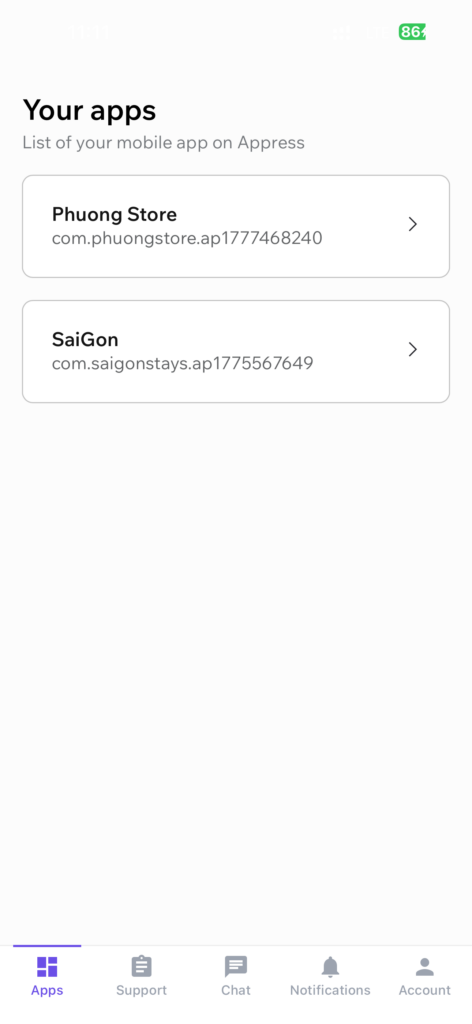
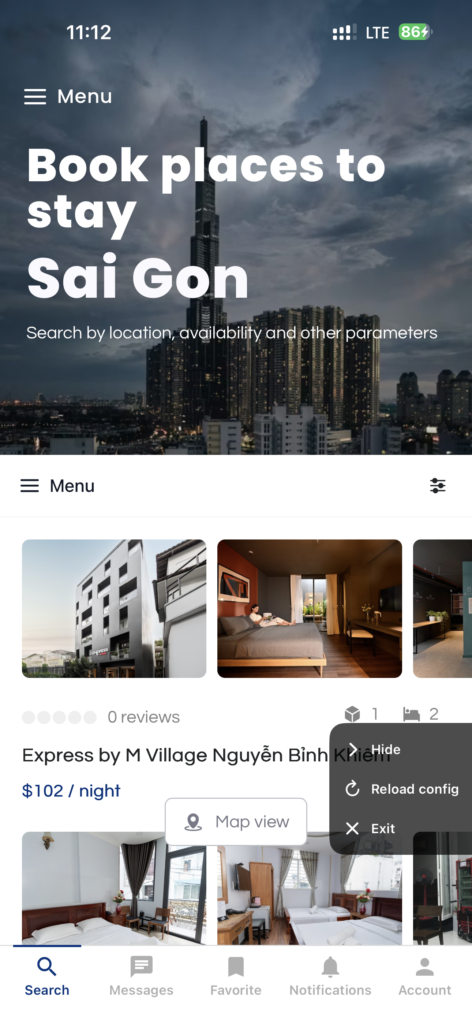
After creating your app and UI, download the My Appress app on your phone and sign in with your Appress account. Your list of apps will appear, and you can preview them from there.
While editing your app’s interface in WordPress, tap Reload Config to refresh the app configuration in the preview.